01 · Capture & edit
A whole page. One image.
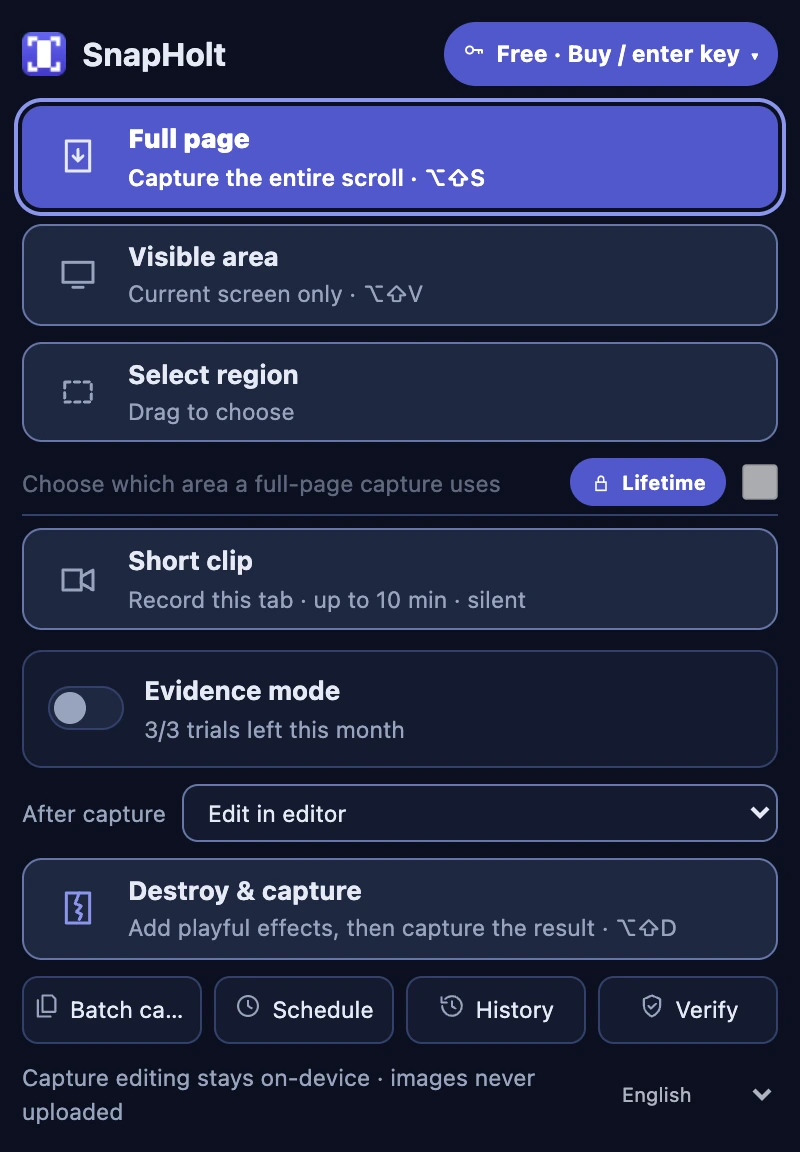
Capture the full page without stitching screenshots by hand. Add arrows and text, then save as PNG, JPG, or PDF.

 SnapHolt
Share one image instead of several.
Show hard-to-explain steps in a short, silent clip.
Start free · No capture uploads

CAPTURE. KEEP. REVISIT.
Collect research. Explain an idea.
Keep the web in the format you need.
Capture the full page without stitching screenshots by hand. Add arrows and text, then save as PNG, JPG, or PDF.
Keep the URL and capture time, and check whether image pixels match the record made at export. Verification runs in your browser.

Show a moving screen with a short, silent clip. Record your browser tab and save a local MP4 file.

YOUR CAPTURES, ON YOUR DEVICE.
Capturing and editing happen locally.
Captured images are not uploaded to a server.
License checks and optional trusted timestamps communicate with external services. See our privacy policy for the data involved.
Read about privacyREAL-LIFE GUIDES
Choose a situation and follow a four-panel comic. Actual product screens are available alongside each step.
First, install SnapHolt from the Chrome Web Store and pin it.
“The photo, the table, the map… scrolling and snapping gave me three files.”
Result: one tall PNG containing the page from top to bottom“Look at this one, then the next one…”
“Get it all in one capture.”
“Photo, table, map. All here!”
“Everything is in this image.”
Capturing only the visible area splits the photo, table, and map into separate images.
Open SnapHolt on the original page and choose Full page. This captures the webpage afresh; it does not merge previously saved files.
Check the continuous capture in the editor, then save it as PNG.
Attach the saved tall PNG to your message or email yourself.
Drawn screens illustrate the situation. See the product screens below the comic for actual controls. Some UI may vary by installed version.
START SMALL. KEEP MORE.
For your everyday captures and edits.
For making repetitive work a little lighter.
Open your installed SnapHolt extension and find the Lifetime offer to review pricing and purchase. You do not need to reinstall.
Terms →Help
It applies playful visual effects to a page before capturing the result. It does not delete the original website’s data.
Yes. Core capture and editing, plus recording and automation within included limits, are available for free. Lifetime is an optional upgrade for higher usage and repeat-work convenience.
History lives in local browser storage, and exported files are saved to your device. Export important captures before clearing browser data or removing the extension.
No. It records context and enables image integrity checks. It does not guarantee that captured content is true or legally valid.
Scheduling and change detection run locally. Your device must be able to run Chrome. Sleep, shutdown, and network conditions can delay or prevent a run.
Short Clip is silent tab recording. It captures neither microphone nor tab audio.
Turn a passing scroll into something you can come back to.
Add to ChromeStart free · No capture uploadsAnother tool from Queue1Lab
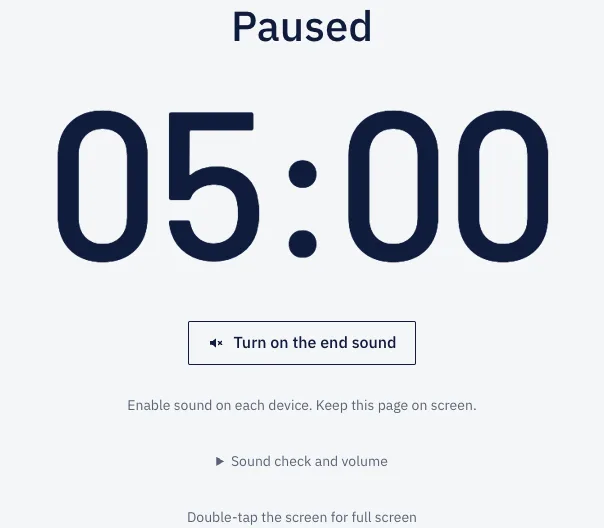 TimerRoom — One timer. Every screen.Put the same timer on everyone’s device with one link and run it live from one place. Free, no signup.Visit timerroom.com
 A web service from Queue1Lab, the makers of SnapHolt. Opens in the browser, nothing to install.
Tell us what happened and your setup. Please leave out license keys and sensitive captures.